


Ever needed to connect a mobile app (like the WordPress app), a plugin, or a third-party service (like Zapier or IFTTT) to your WordPress site?
In the past, you might have been tempted to use your main username and password. This is a major security risk. If that third-party service is ever breached, your entire website is exposed.
Thankfully, WordPress has a much safer, built-in solution: Application Passwords.
What is an Application Password?
An Application Password is a unique, 24-character password that you can generate for a specific app or service.
It gives that app permission to access your site without knowing your real password.
The best part? You can create as many as you need and instantly revoke access for any single app at any time, without affecting your main login or any other connections.
Here’s how to create one in just a few clicks.
How to Create an Application Password
You must have an Administrator account to create Application Passwords.
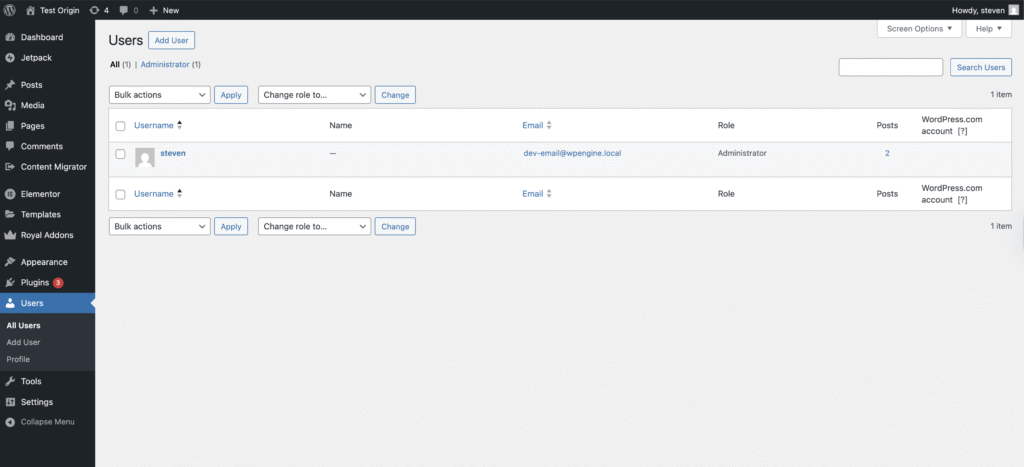
Step 1: Go to Your User Profile
Log in to your WordPress dashboard. In the left-hand menu, hover over “Users” and click on any of the users that you want to create the application password for.
(Alternatively, you can click your name in the black Admin Bar at the top-right of the screen and choose “Edit Profile”.)
Step 2: Scroll Down to “Application Passwords”
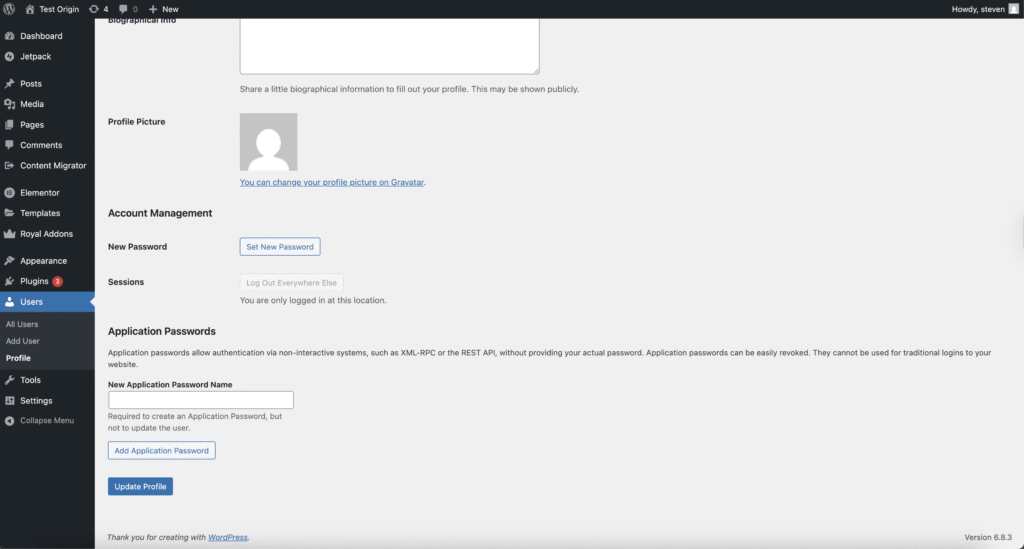
Scroll down your profile page. Near the bottom, you’ll find a section titled “Application Passwords”.
Can’t find this section? If you don’t see this section, it’s almost certainly because your site’s REST API has been disabled, likely by a security plugin (like Wordfence). You’ll need to check your security plugin’s settings and re-enable the REST API to use this feature.
Step 3: Name Your New Password
In the “New Application Password Name” field, enter a clear, descriptive name for the app that will be using it. This is only for your reference so you can remember what it’s for.
Good examples:
My iPhone AppZapier ConnectionJetpack
Bad examples (you’ll forget what they do):
Pass1My AppTest
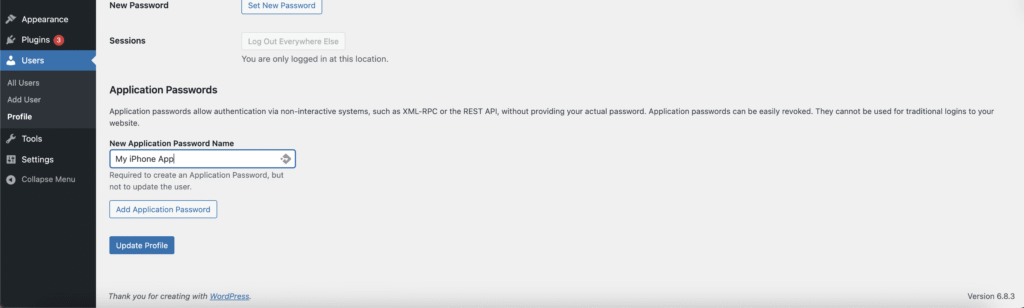
Step 4: Add the New Password
Click the “Add New Application Password” button.
Step 5: Copy Your New Password (Important!)
A new password will instantly appear.
WARNING: WordPress will only show you this password one time. You will not be able to see it again.
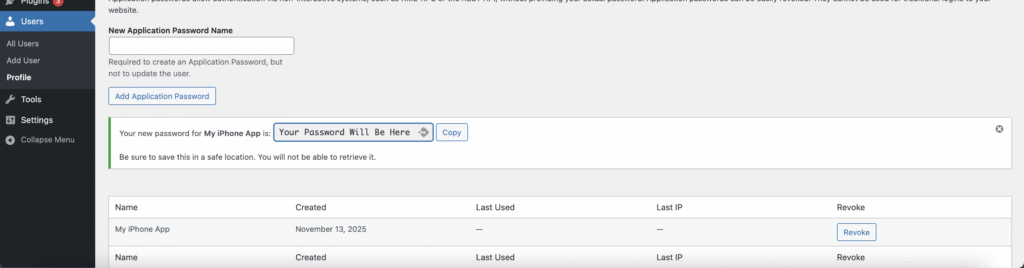
You must copy this password (you can use the
Copybutton) and paste it directly into the application that requires it. Be sure to remove any spaces if the app doesn’t accept them.
Once you close this page, the password is gone forever.
How to Manage (or Revoke) an Application Password
What if you lose your phone or want to stop using a service? Revoking access is simple.
- Go back to “Users” -> “Profile”.
- Scroll down to the “Application Passwords” section.
- You will now see a list of every application password you’ve created.
- Find the one you want to remove and click the “Revoke” button next to it.
That’s it! Access for that specific app is immediately and permanently cut off.
Conclusion
Using Application Passwords is a simple, powerful way to improve your WordPress security. It allows you to safely connect third-party services to your site without ever exposing your most important credential: your personal admin password.


